UHF – Love Your IPTV is one of the finest IPTV players you can run on Apple hardware. It brings a beautiful interface, superb 4K HDR and Dolby Atmos support, iCloud syncing across your devices, and a genuinely smooth experience on Apple TV, iPhone, iPad and Mac.
This guide walks you through installing and setting up UHF on any compatible Apple device, then adding your Get Streamer HD IPTV playlist.
Before you start
- Apple TV (4th generation or later), iPhone, iPad, or a Mac with Apple Silicon (M1 or newer) on macOS 13+
- A stable internet connection — 25 Mbps or faster is recommended for 4K HDR
- Signed in with your Apple ID
- An active Get Streamer HD IPTV subscription (Server URL, Username & Password)
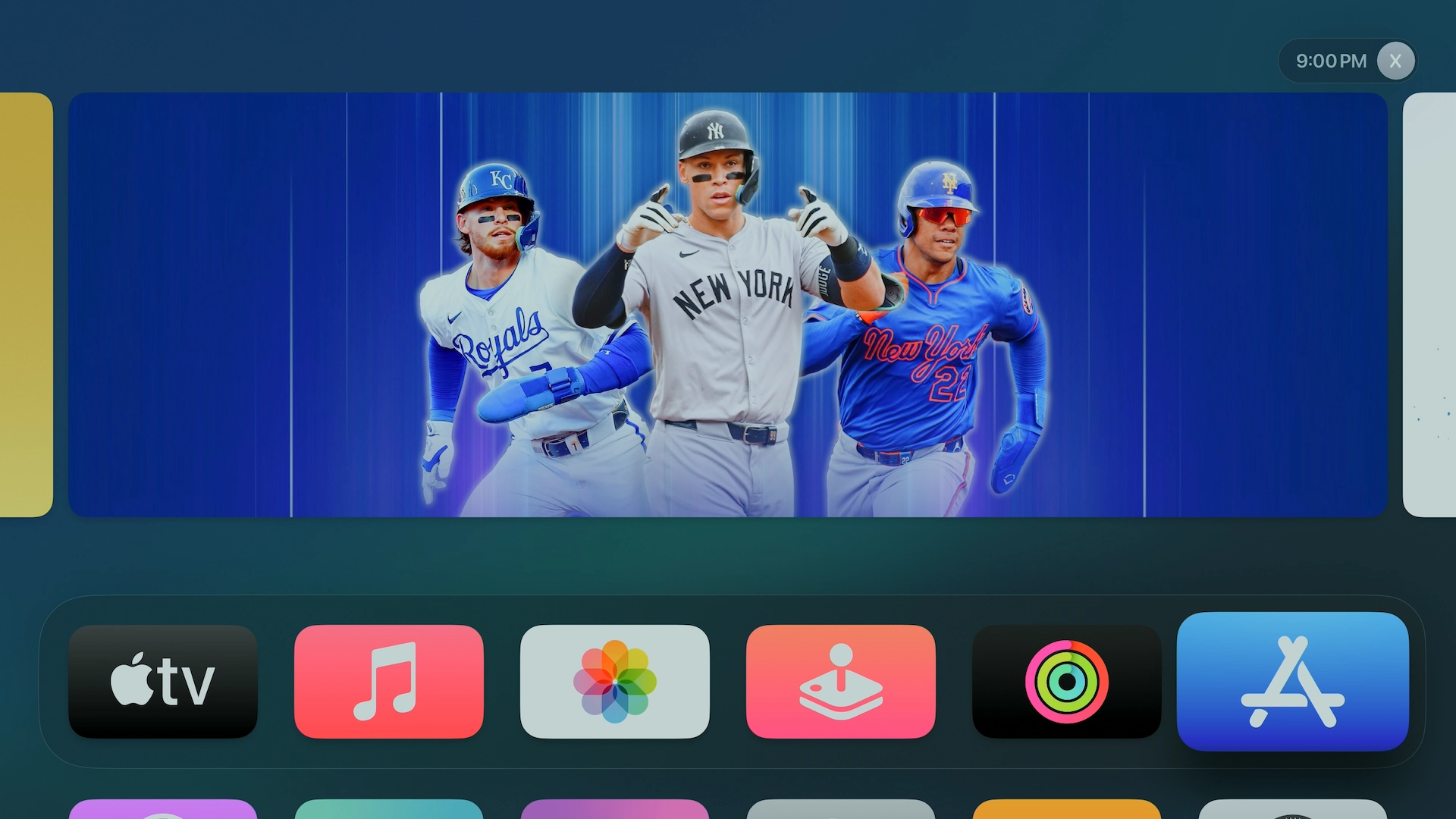
1Open the App Store on your device
Apple TV: highlight the App Store icon on the home screen and press Select.
iPhone / iPad: tap the App Store icon.
Mac: open the App Store from the Dock or your Applications folder.
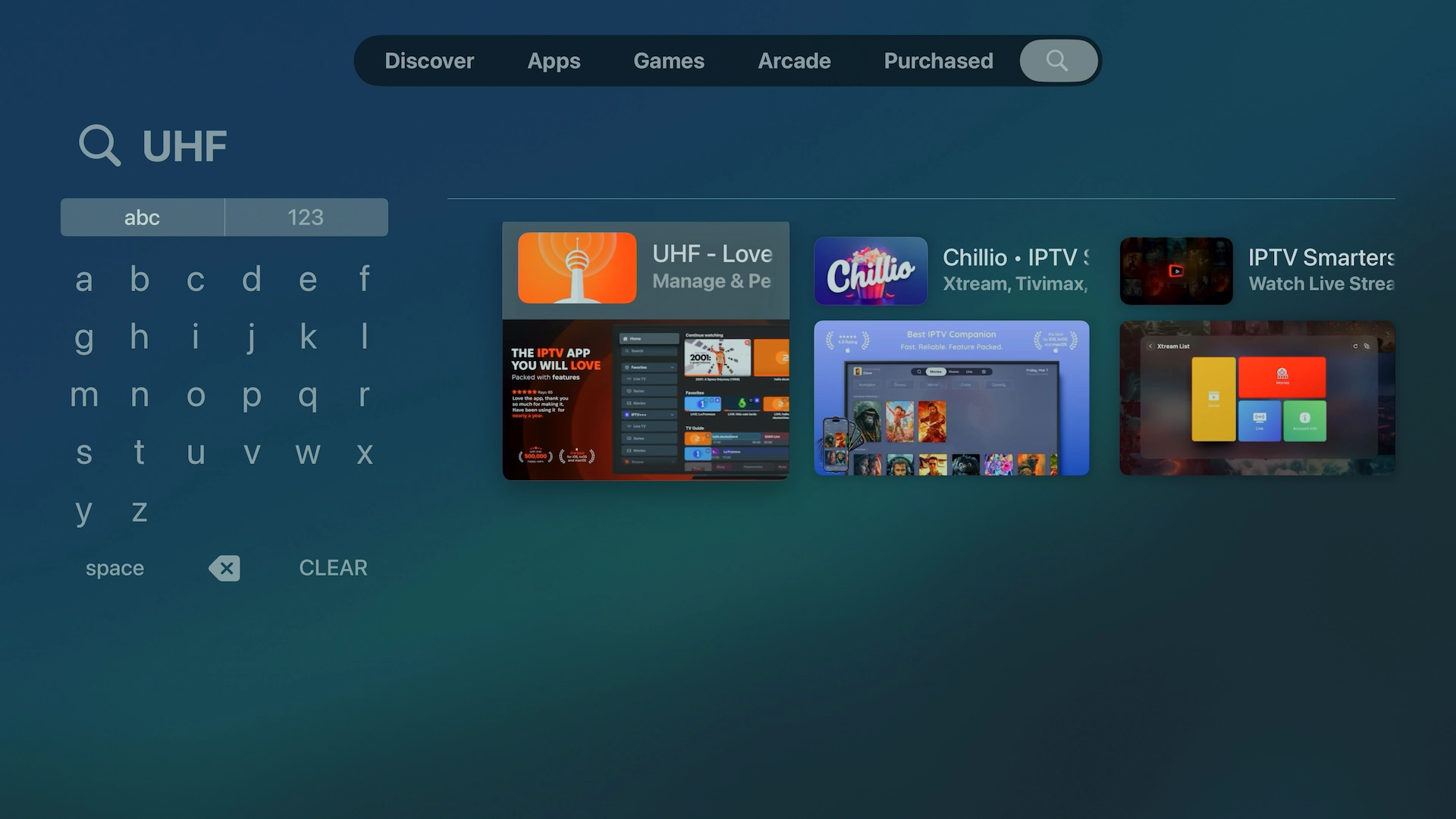
2Search for UHF – Love Your IPTV
Apple TV: open search and type “UHF IPTV”, or ask Siri to “Find UHF IPTV”.
iPhone / iPad / Mac: tap or click Search and type “UHF – Love Your IPTV”.
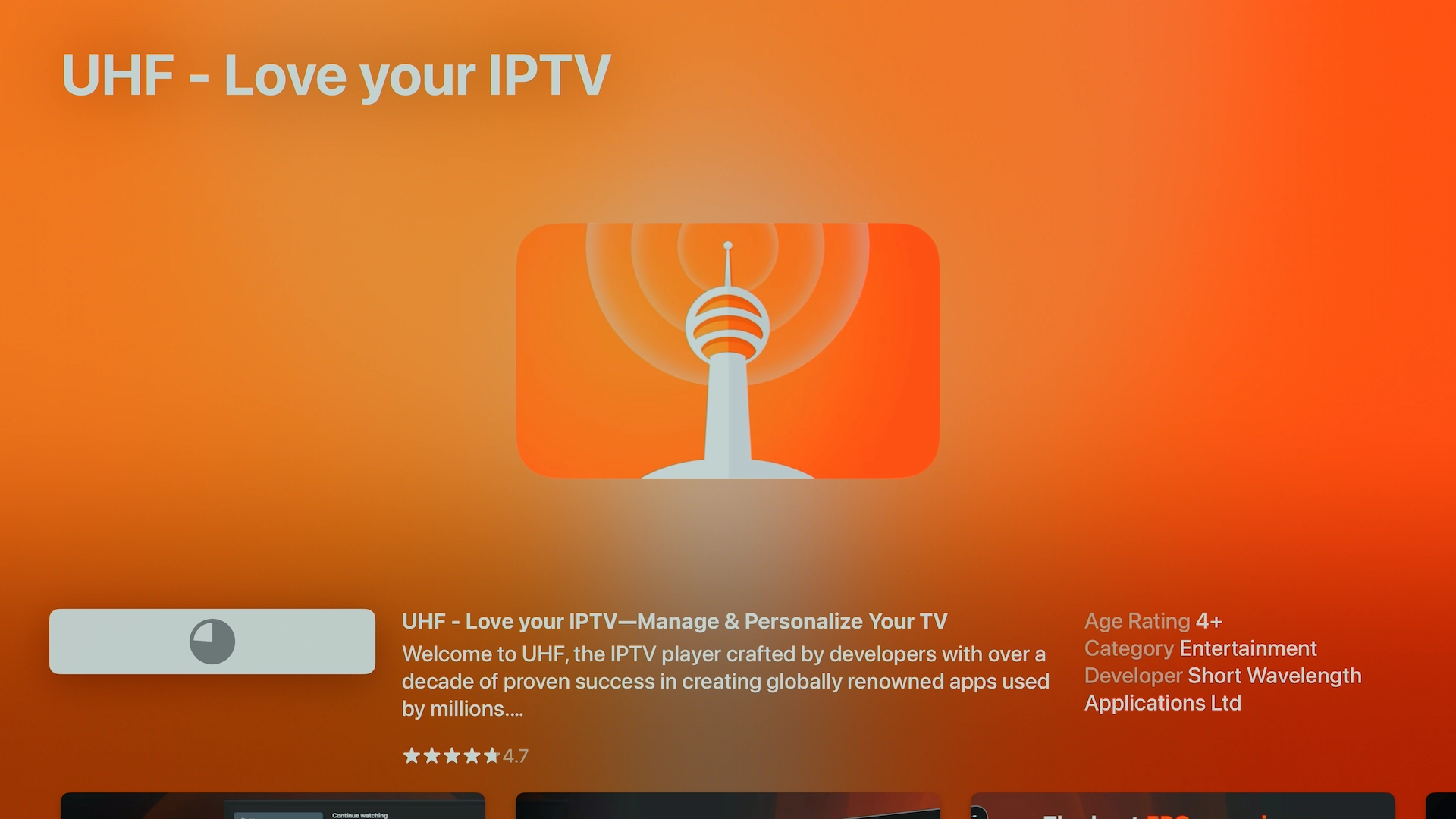
3Download & install UHF
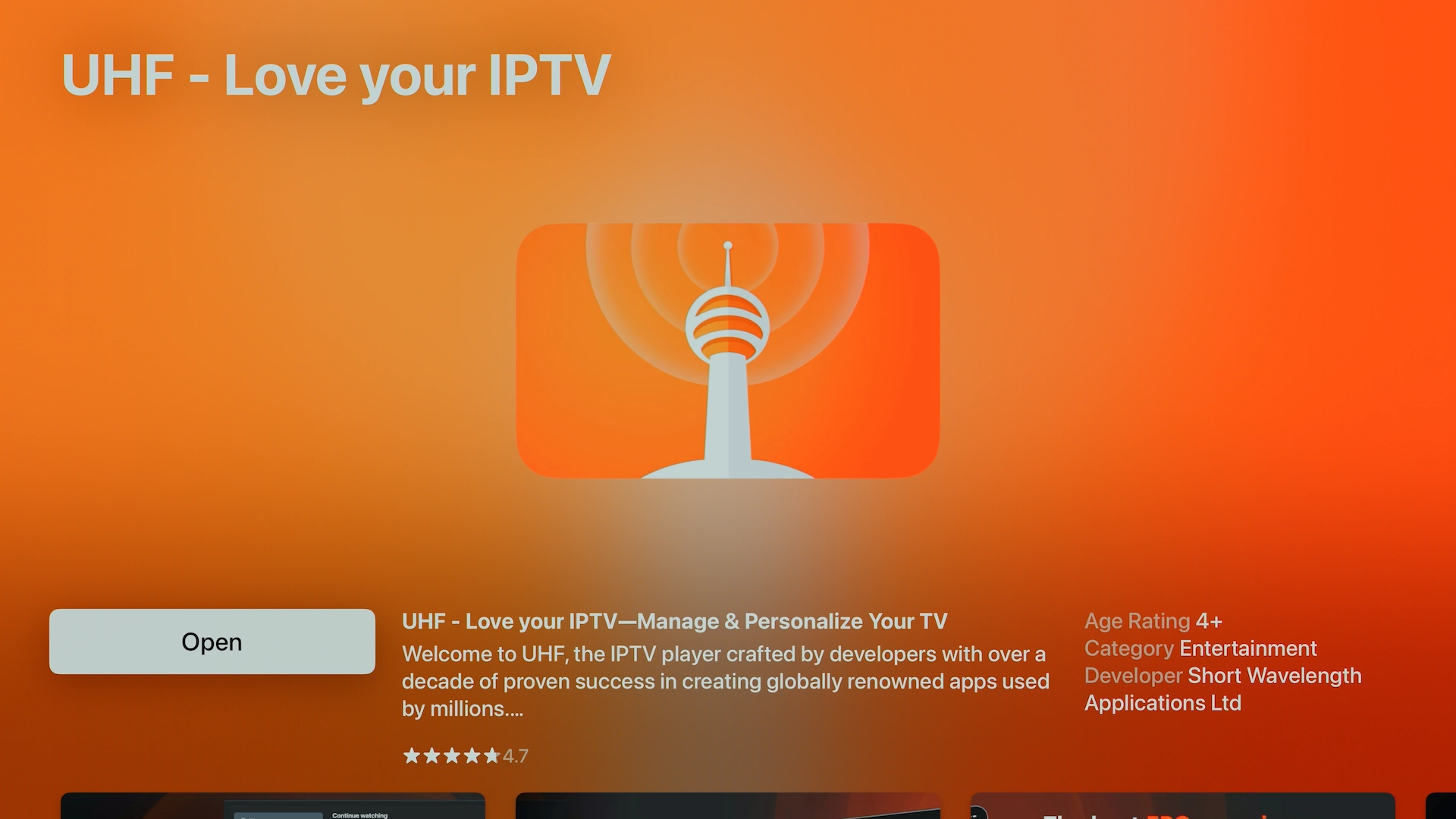
Find the app UHF – Love Your IPTV by Short Wavelength Applications Ltd. Tap or click Get (or the cloud icon) and sign in with your Apple ID if prompted. It's around 110 MB and installs in moments.
4Launch UHF
Apple TV: return to the home screen, highlight the UHF icon and press Select.
iPhone / iPad: tap the UHF icon.
Mac: open it from Applications or Launchpad.
5Add your Get Streamer HD IPTV playlist
On first launch you may be offered the option to import a subscription — choose Continue to the Application to skip that. Then:
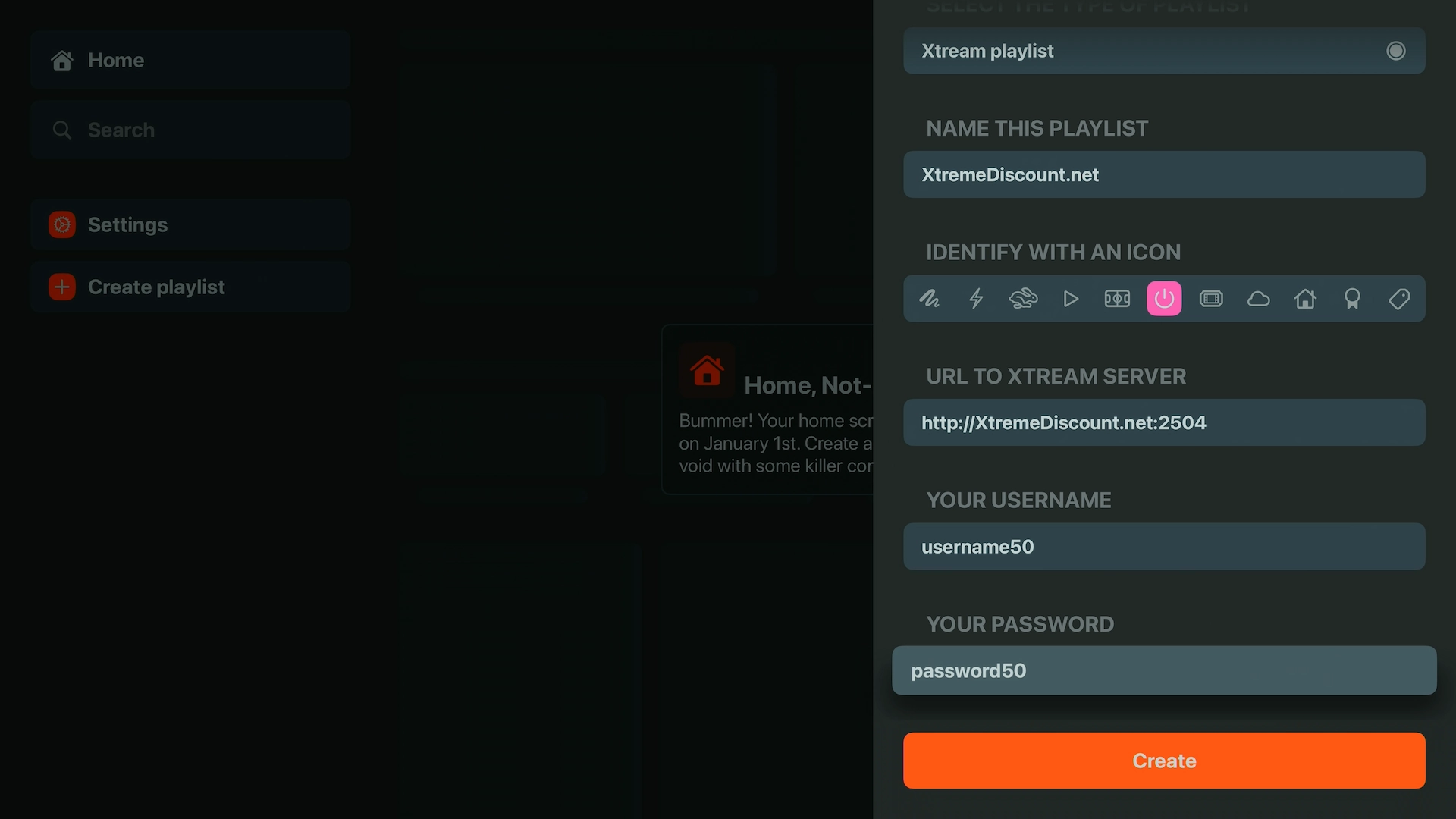
- Tap or click Create Playlist.
- Select Xtream Codes (the best choice for most providers).
- Give your playlist a name — for example, “Get Streamer HD IPTV”.
- Enter your Server URL, Username and Password.
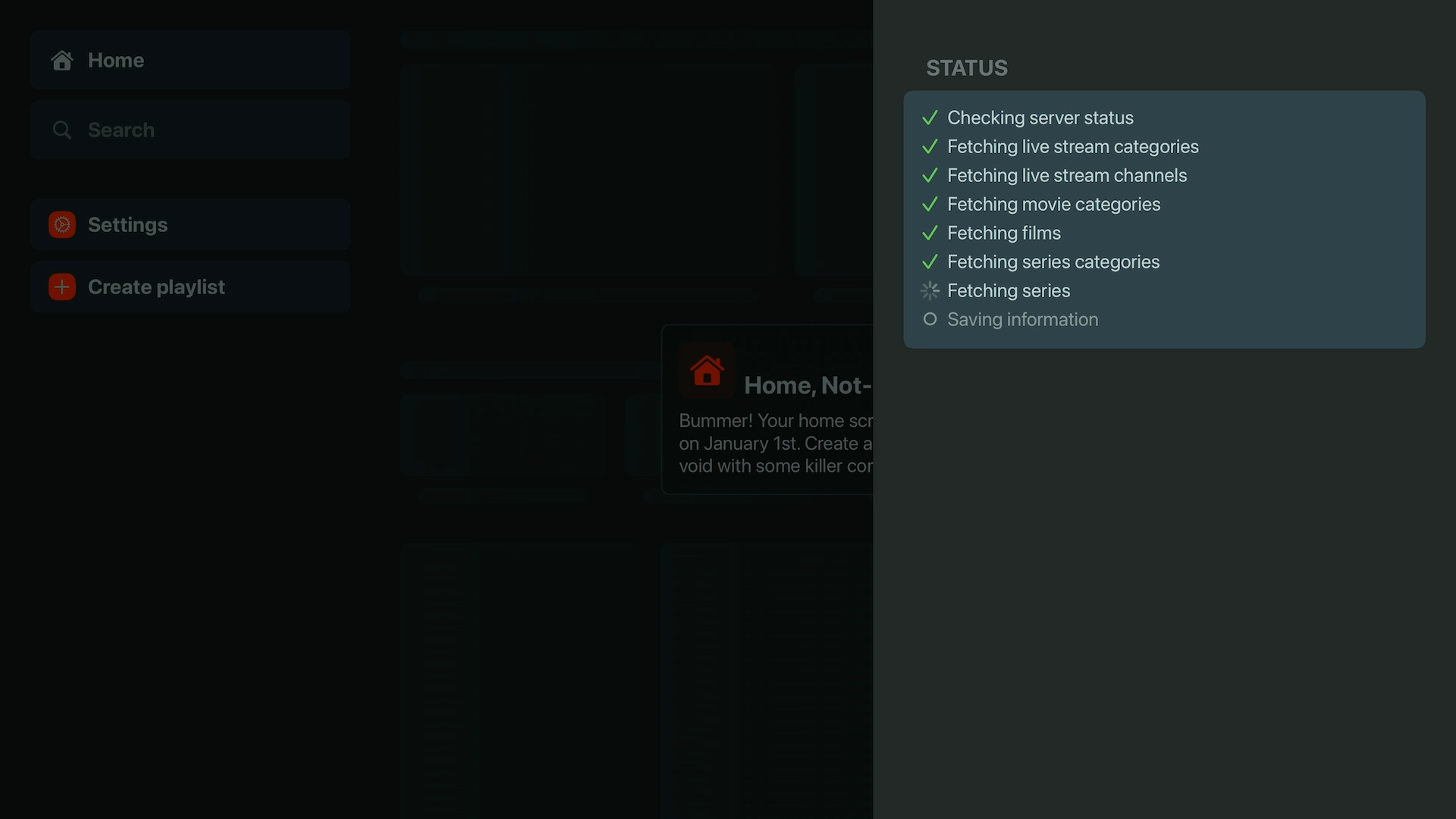
- Tap Create and give it a minute or two while your channels, movies, series and EPG load.
Don't have a subscription yet? Start a free 36-hour Get Streamer HD IPTV trial — no payment details required.
 -
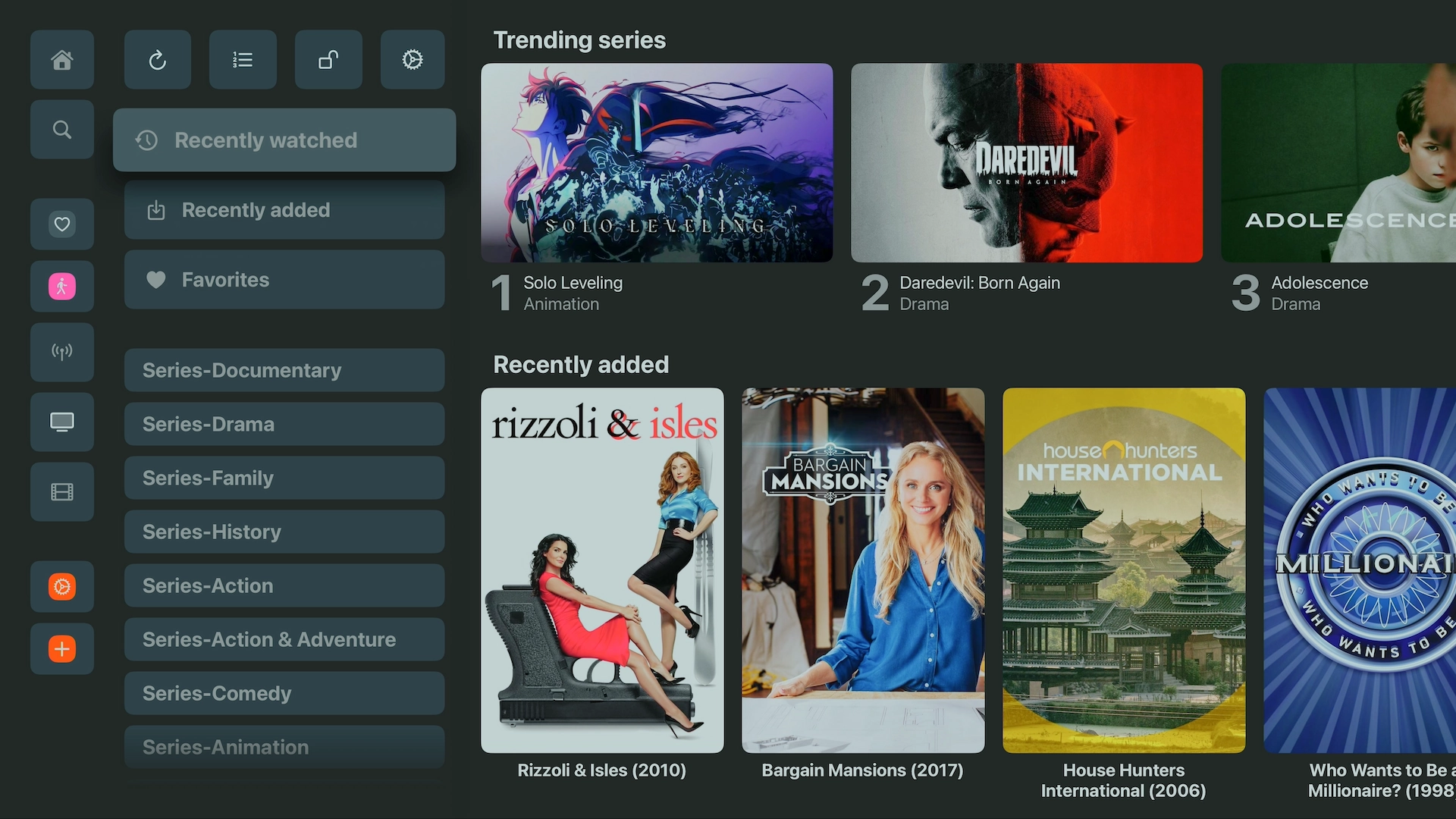
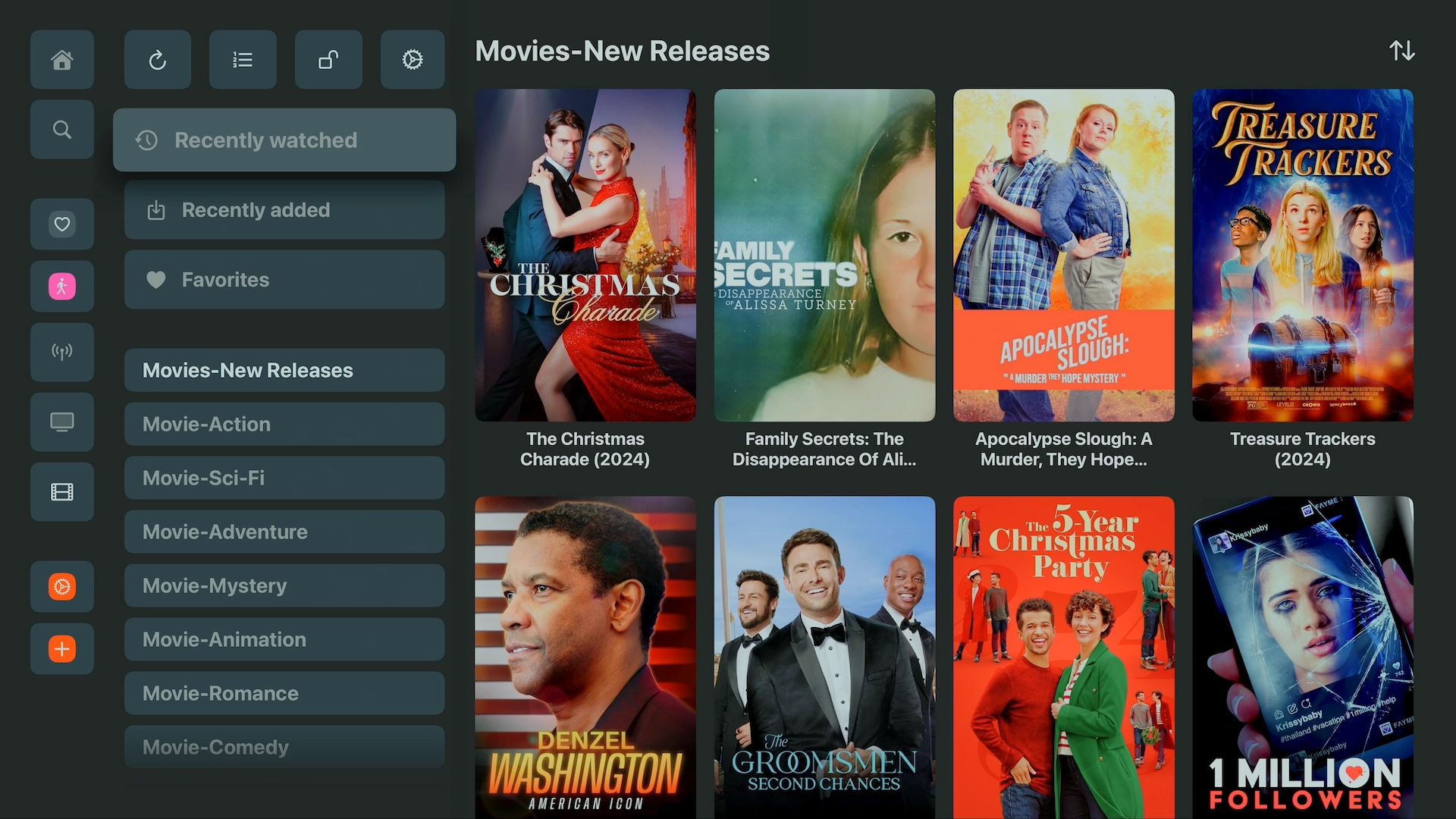
Explore the UHF interface
Browse series in a clean grid with genre filters and clear season/episode views. Anything in 4K HDR is clearly labelled.
A featured carousel and genre-based grids make films easy to browse, each with a synopsis and resolution details.
Why UHF stands out on Apple devices
- Excellent 4K HDR and Dolby Atmos playback
- Seamless iCloud syncing of playlists, favourites and watch history across Apple TV, iPhone, iPad and Mac
- Built-in EPG with clean, quick navigation
- Plenty of customisation (buffer size, video renderer and more)